 CropEntry
Daily use · 6 min
Crop registration: log every load from your phone
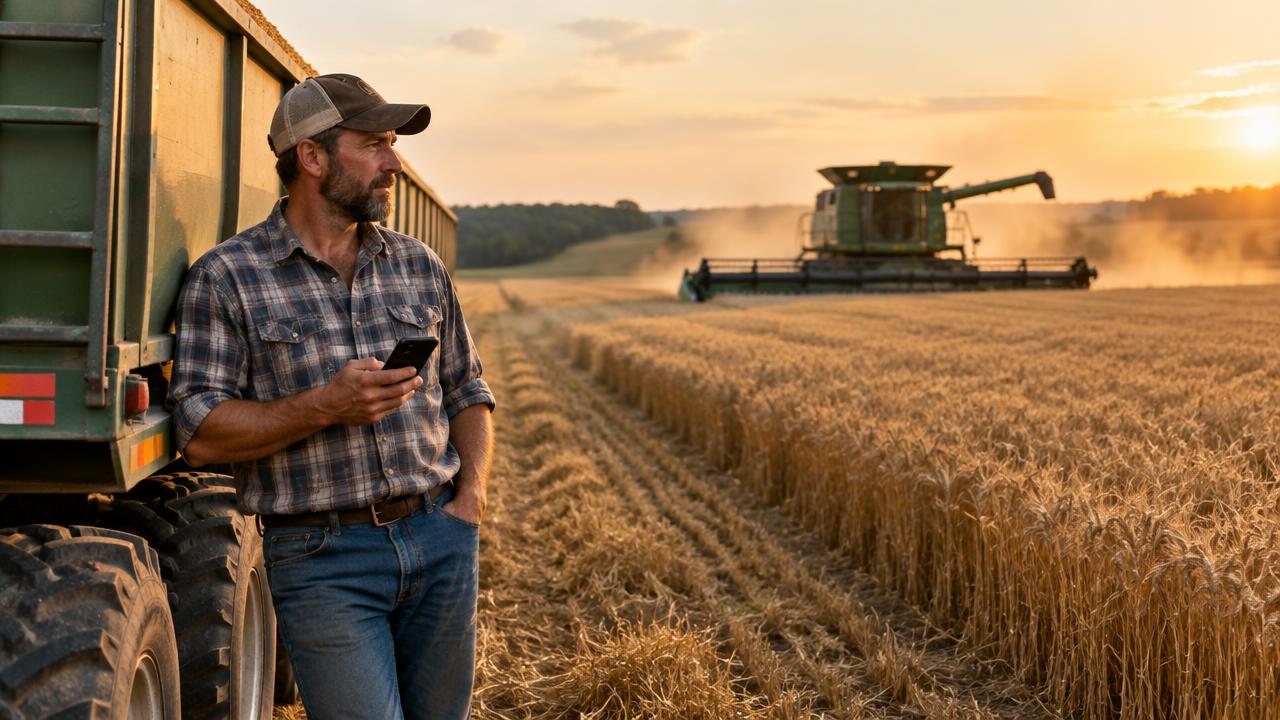
Crop registration is the heart of CropEntry. Every time a load comes in, the driver registers it on their phone. From those registrations you get silo contents, harvest history and yield per paddock – without paper tickets or spreadsheets. In this guide we use a load of wheat as the example.
Why register every load?
- ✓You know exactly how much wheat is in each silo – right now.
- ✓Yield per paddock is calculated automatically once hectares are entered.
- ✓Nothing gets lost between the paddock, the truck and the office.
- ✓Every change is saved in the audit log, so you can always see who did what.

Register a load step by step
- 1
Open “Register”
Log in and tap “Register” in the menu. It is the first thing drivers see.
- 2
Choose paddock
Tap the paddock the load comes from, e.g. Paddock 5. Use search if you have many paddocks.
- 3
Choose silo
Select where the load is delivered – silo, shed or silo bag.
- 4
Choose crop
Tap the crop – here Wheat.
- 5
Enter weight
Enter the net weight in kg. Or choose “Gross” and enter the total weight and tractor + trailer weight – the net weight is calculated for you.
- 6
Save and approve
Press “Save registration”, check the summary and press “Approve”.
Ready for harvest?
Create your farm in CropEntry for free and register your first load in minutes.
Create free account →Free · No credit card · Works on any phone
Net or gross weight?
If you have a weighbridge ticket with the net weight, just enter it. If you weigh the full trailer, choose “Gross” and enter the tractor + trailer weight once – CropEntry subtracts it for you, so drivers do not have to do mental maths.
From loads to yield per hectare
All loads from a paddock are summed under Statistics. Enter the paddock's hectares and CropEntry shows the yield in tonnes per hectare. Example: 132,000 kg of wheat from 40 ha gives 3.3 t/ha.
Tips for a smooth harvest
- ✓Add CropEntry to the home screen on every driver's phone before harvest.
- ✓Name paddocks the way your team talks about them – then nobody picks the wrong one.
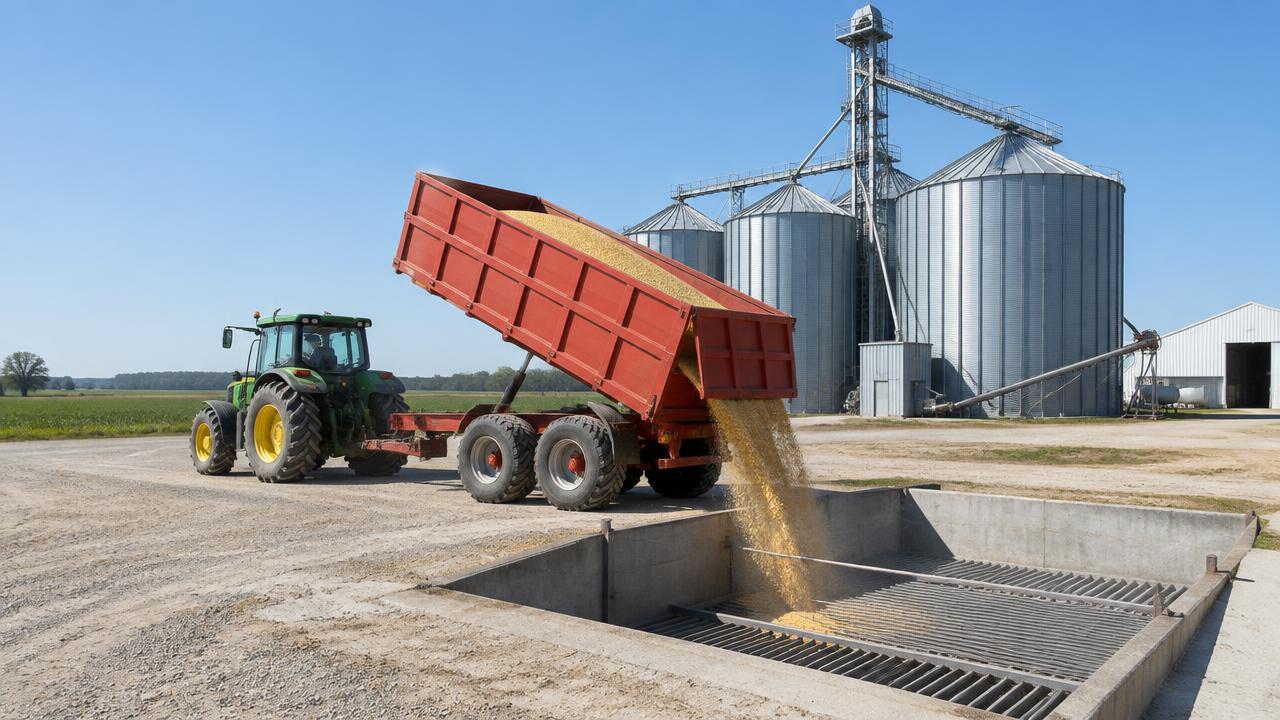
- ✓Register the load when it is tipped, not at the end of the day.
- ✓Mark a paddock as harvested under Statistics when it is finished.
Frequently asked questions
What if I register a wrong weight?
Press “Edit” before approving. Afterwards, the load can be corrected under History – the change is logged in the audit log.
Does it work with poor mobile coverage?
CropEntry is very lightweight and loads fast on weak connections. Register when the phone has signal, e.g. at the yard.
Can several drivers register at the same time?
Yes. Everyone on the farm can register simultaneously – silo contents update for all.
Next guide
How to create your CropEntry account →
Sign up for free and set up farm, silos, paddocks and crops in about five minutes.
Ready for harvest?
Create your farm in CropEntry for free and register your first load in minutes.
Create free account →Free · No credit card · Works on any phone
Still need help?
Write to hi@cropentry.com – we usually reply within one working day.