 CropEntry
Getting started · 5 min
How to create your CropEntry account
This guide takes you from zero to a farm that is ready to register loads. It takes about five minutes, costs nothing and you do not need a credit card. Do it a week before harvest, so your drivers can start the moment the header goes in.
Before you start
Have these things ready – it makes setup a breeze:
- ✓An email address you check (your password is sent there).
- ✓The names of your silos, sheds or silo bags.
- ✓A list of your paddocks – names or numbers are fine, hectares are optional.
- ✓The crops you will harvest this season, e.g. wheat, barley and canola.

1. Sign up with name and email
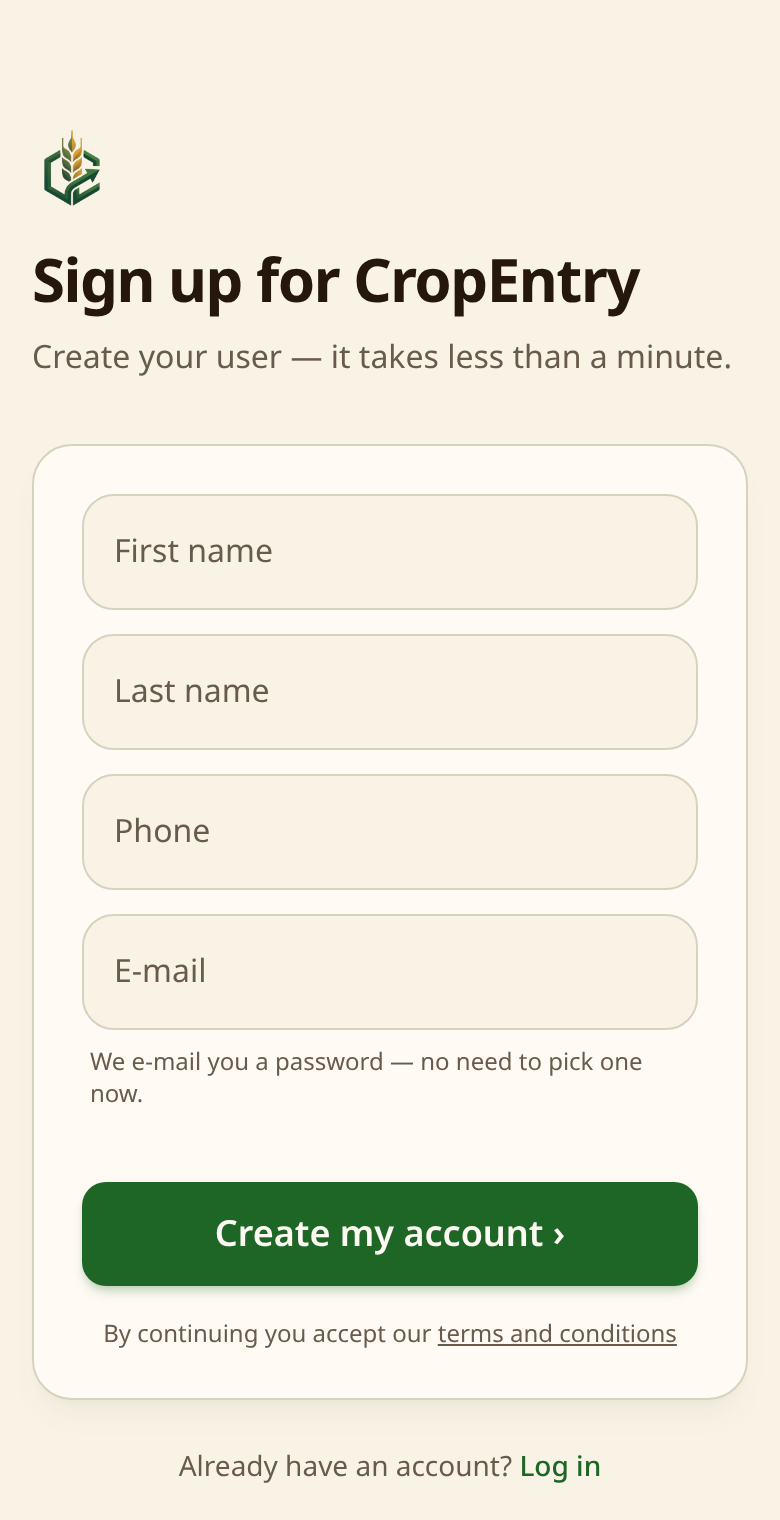
Go to the sign-up page and fill in first name, last name, phone and email. You do not choose a password – CropEntry generates a secure one and emails it to you. That means fewer forgotten passwords in the middle of harvest.
Ready for harvest?
Create your farm in CropEntry for free and register your first load in minutes.
Create free account →Free · No credit card · Works on any phone
2. Find the welcome email
Within a minute you receive a welcome email from CropEntry with your password and a login button. If it has not arrived after a few minutes, check your spam or promotions folder and mark it as “not spam”.
Log in with your email and the password from the email. You can change the password later under Settings.
3. The setup guide: farm, silos, paddocks and crops
The first time you log in, a short setup guide starts. It has four steps:
- 1
Farm name
E.g. “Green Valley Farm”. This is what your team sees at the top of the app.
- 2
Silos
Add every place grain is stored – silos, sheds, silo bags. Capacity in kg is optional but gives you a fill level on the dashboard.
- 3
Paddocks
Create at least one paddock, e.g. “Paddock 5”. Add hectares to get yield per hectare automatically.
- 4
Crops
Tap the common crops for your region or type your own. You can add more at any time.
4. Invite your drivers
Under Settings you can invite employees by email. Drivers only see what they need: register a load. You, as owner, see the dashboard, history, statistics and audit log.
Done – you are ready for harvest
That's it. The next step is to register your first load – read the guide on crop registration below. Tip: add CropEntry to your phone's home screen so it opens like an app.
Frequently asked questions
What does CropEntry cost?
CropEntry is free right now, including all features. No credit card is required.
I did not receive the welcome email – what do I do?
Check spam. If it is not there, use “Forgot password” on the login page or write to hi@cropentry.com.
Can I change silos and paddocks later?
Yes. Everything from the setup guide can be edited under Settings at any time.
Next guide
Crop registration: log every load from your phone →
Register every load straight from the paddock – paddock, silo, crop and weight in under 20 seconds.
Ready for harvest?
Create your farm in CropEntry for free and register your first load in minutes.
Create free account →Free · No credit card · Works on any phone
Still need help?
Write to hi@cropentry.com – we usually reply within one working day.